When it comes to modern smartphones, the way your home screen looks and feels can influence almost every interaction. Samsung One UI Home is a system launcher at the core of Galaxy devices.
It’s designed not just for style, but for maximum usability. For anyone using a Samsung phone, understanding One UI Home’s potential can help make daily tasks more efficient—and maybe a lot more fun.
This article might be especially useful if you value a personalized, fluid device experience. Whether new to Samsung or looking to reshape your Android workflow, uncover how One UI Home can adapt to your habits for a smoother digital life.
What Is Samsung One UI Home?
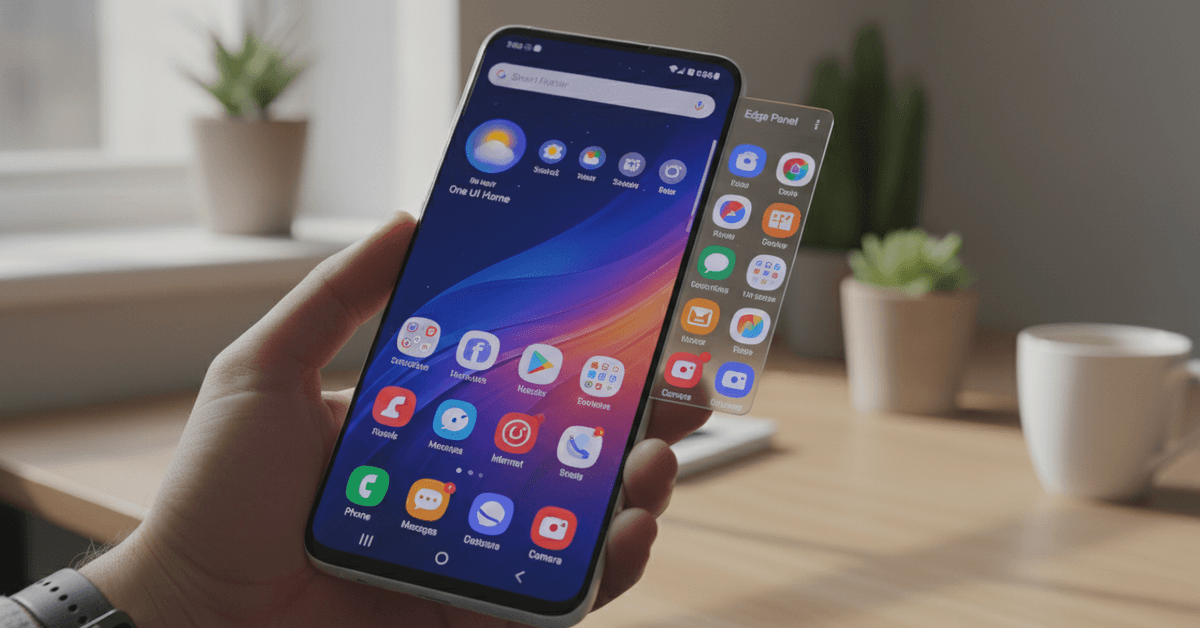
One UI Home acts as Samsung’s default launcher, which is basically the app responsible for your home screen layout, app grid, and overall device navigation. Unlike generic Android launchers, it ties deeply into Samsung enhancements and services.
Main Features of One UI Home
- Customizable home screen grids and widgets
- Seamless gesture navigation for fast access
- Smart folders and app recommendations
- Minimalist visual design optimized for one-handed use
Beyond aesthetics, it’s built to reduce clutter. Many users discover that, over time, the interface adapts subtly to personal patterns—a small example of thoughtful engineering, perhaps with more impact than many expect.
How One UI Home Improves Your Device Experience
Personalized Layouts and Themes
The look and feel of your phone evolves around you, influenced by how you organize apps, place widgets, and select wallpapers. One UI Home’s grid settings let users adjust rows and columns freely, which is useful for both minimalists and multitaskers.
Focus on Accessibility and Ergonomics
Samsung designed One UI Home keeping one-handed navigation in mind. Elements are positioned lower on the screen, so reaching everything doesn’t need hand gymnastics. This aspect might benefit those with larger phones—or simply anyone on the move.
Built-in Device Security and Stability
Unlike third-party launchers, One UI Home offers deep integration with device security features. Some users might feel safer sticking to the native launcher, as third-party options can sometimes trigger compatibility hiccups or extra battery drain.
How to Personalize with One UI Home
Home Screen Customization
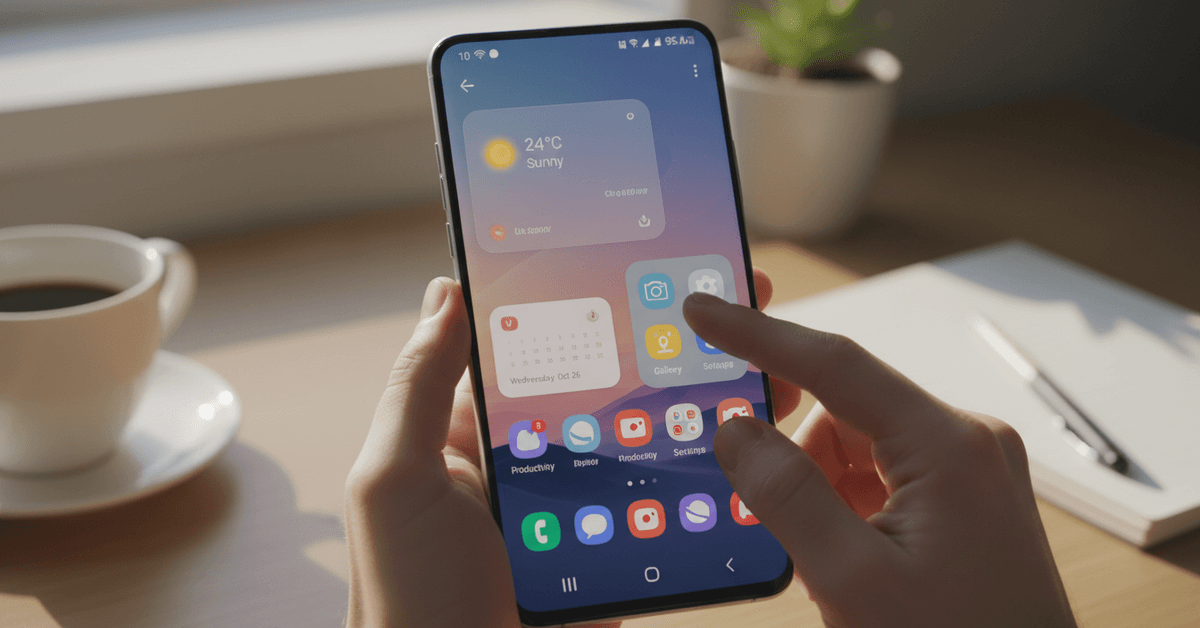
- Widgets: Users often add weather, calendar, or digital wellbeing widgets, arranging them for instant info at a glance.
- App Folders: Grouping similar apps—like productivity, games, or social media—simplifies access and declutters the layout.
An interesting trick: if someone’s a bit indecisive about wallpaper, the built-in Dynamic Lock Screen can rotate new images regularly, giving the device fresh vibes without any effort.
The effect, even after a few weeks, can keep the smartphone experience feeling new.
Theme Store and Icon Packs
The Samsung Theme Store provides free and paid themes, which not only change wallpapers but also icon shapes, fonts, and color palettes.
The choices vary, and while some themes are perhaps too bold for every taste, there’s usually something suitable for any mood or occasion.
Gesture and Navigation Tweaks
Adjusting navigation gestures is easy within One UI Home settings. People can switch between buttons and full-screen gestures based on what feels more intuitive.
Sometimes, after experimenting, users might return to classic buttons, which is fine—comfort often trumps novelty.
One UI Home Performance and Battery Impact
Resource Efficiency
One UI Home is engineered specifically for Samsung hardware. Many find performance stays snappy even with several widgets and multiple home screens.
Some independent tests show it consumes less battery than third-party equivalents, but the difference may be minor day-to-day.
Security and Updates
Security updates for Samsung launchers are delivered together with system software. This could give a bit of peace of mind compared to side-loaded apps.
Also, One UI Home rarely causes crashes; reliability appears to be a frequent user highlight in Samsung forums.
Hidden Features and Productivity Tips
Samsung’s Edge Panels
Edge Panels, accessible from the device edge, tie directly into One UI Home. They allow fast access to apps, contacts, or tools without cluttering the main screen.
Some users have mentioned that after a little adjustment, it’s hard to imagine living without these shortcuts.
Device Search and App Suggestions
The finder bar at the top of One UI Home is smarter than it looks. Besides searching for apps, it also pulls contacts or settings, which streamlines device navigation significantly. Occasionally, it feels like a minor time-saver; but over weeks, the efficiency adds up.
Pop-Up View and Multi-Window
One UI Home supports easy split-screen multitasking. By long-pressing an app, users get options for pop-up or split view—ideal for comparing notes or replying to messages while streaming. It’s not flawless, but improves multitasking for those who use it.
Comparing One UI Home with Other Launchers
| Feature | One UI Home | Third-Party Launchers |
|---|---|---|
| System Integration | Deep | Variable |
| Theme Options | Many via Theme Store | Wide, via downloads |
| Security Updates | Regular, official | Not always guaranteed |
| Battery Impact | Optimized | Varies |
Some seasoned users like changing launchers for fresh looks or new features. However, others remark that sticking with One UI Home prevents bugs or lags common with non-integrated options.
In general, the balance between personalization and stability leans toward One UI Home for most Galaxy owners.
Troubleshooting and Compatibility
App Drawer and Icon Issues
From time to time, a missing icon or frozen widget may appear. Restarting the launcher (by force stopping via settings) usually solves minor hiccups. Rarely, after updates, certain apps hide in folders—a quick settings check or home screen reset resolves it.
Using One UI Home on Older Samsung Devices
Not every Galaxy device receives the latest One UI Home version. On some older models, feature sets are slightly limited, such as gesture support or theme selection. Still, much of the core experience remains consistent even on midrange or older phones.
Is One UI Home Safe to Disable?
Disabling Samsung One UI Home isn’t possible unless you install a different launcher. However, doing so often breaks certain device functions or results in less smooth performance.
For the average user, it’s safest—and simplest—to remain with the default setup unless there are very specific reasons to switch.
Frequently Asked Questions About One UI Home
Is One UI Home necessary?
For Samsung phones, it’s the foundation of the interface. It’s not just an extra app—it handles the home and app screens. Removing or disabling it isn’t supported.
Can One UI Home be replaced?
Yes, but alternatives sometimes impact battery life or cause glitches. Samsung’s own launcher remains the most stable for most users.
Does One UI Home affect privacy?
Since it’s a core system tool, updates and privacy settings are managed through official Samsung channels, following general Android privacy standards.
Conclusion
Discover how Samsung One UI Home enhances Android with smoother navigation, customizable layouts, improved performance, and intuitive features, helping you create a more personalized, efficient, and user-friendly smartphone experience every day.